New functionality called Cancel Lines has been added to Restocks that will allow Users to better manage open Restocks. If a Restock has been Placed and transmitted to the vendor, the Cancel Lines option will allow Admin Users to cancel some/all lines or some/all quantities of items on a Restock if they know those items or quantities will not be shipped per the vendor. Restocks that have been Created, but not Placed can still be fully cancelled. The Cancel Lines functionality is not available on Restocks submitted to a Warehouse since the Warehouse can short ship a Restock to its Satellite location.
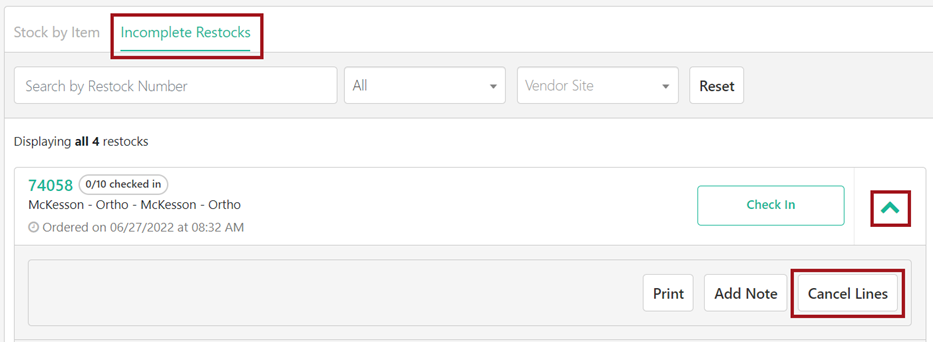
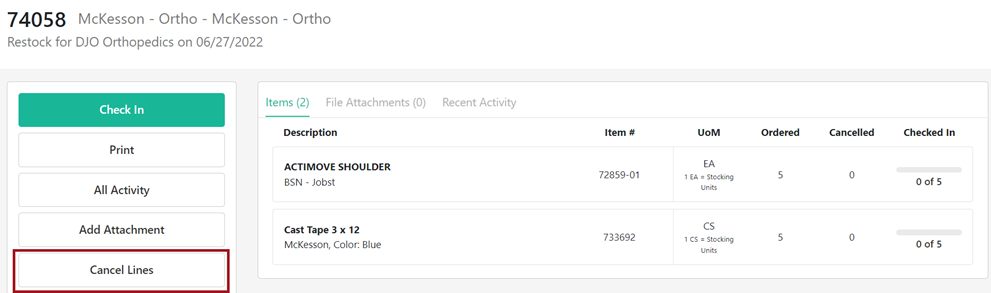
The new Cancel Lines option is accessible in two places on a Placed Restock.
From the Incomplete Restocks tab, expand the restock with the down arrow and a new button called Cancel Lines is visible.
Clicking into the Placed Restock, a new action button on the left called Cancel Lines is visible.
Cancelling One Line on a Placed Restock:
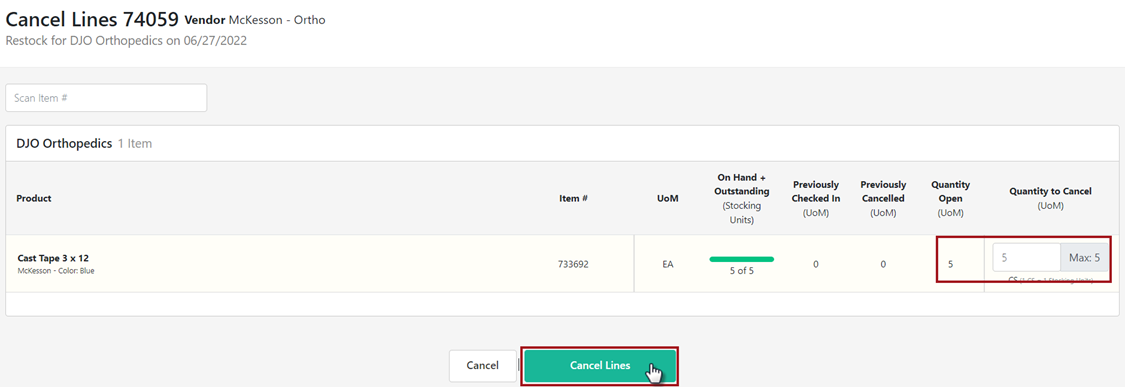
To cancel a line on a Restock, click the Cancel Lines button. User are brought to a new page with the header Cancel Lines with the Restock number. A new column labeled Previously Cancelled is visible along with a Quantity to Cancel column.
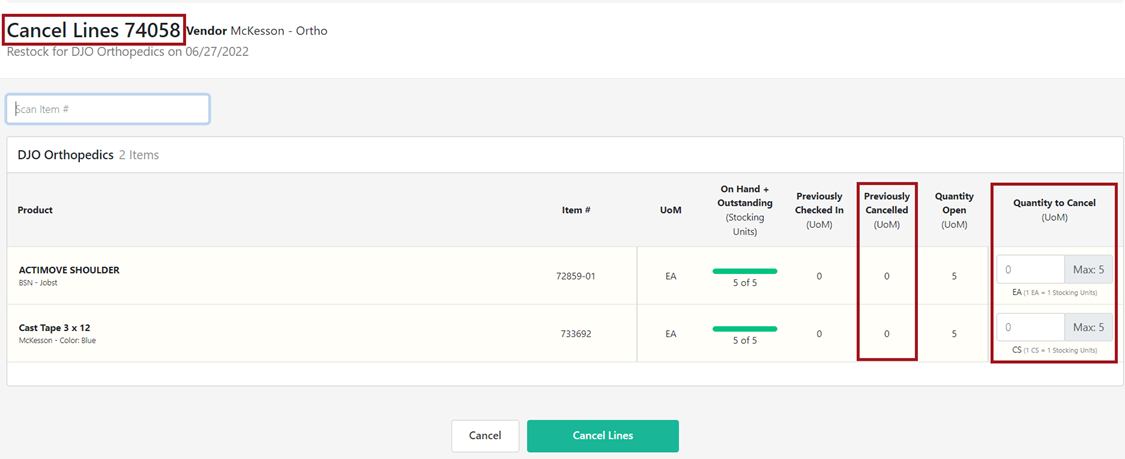
To Cancel Lines, increase the quantity in the Quantity to Cancel column, some or all quantities on the line can be cancelled. After adding the quantity, click the Cancel Lines button.
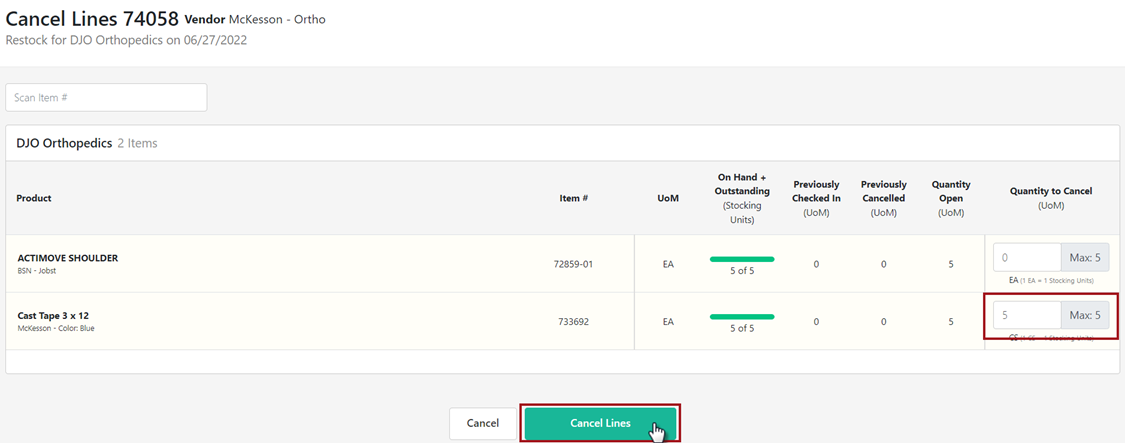
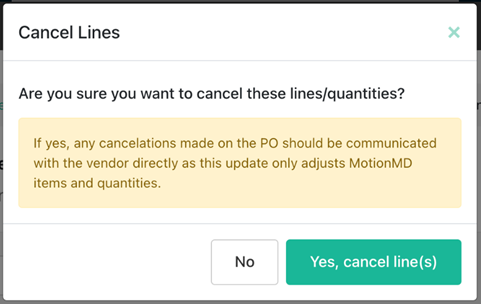
After clicking the Cancel Lines button, Users are presented with a confirmation modal asking to confirm the items and quantities should be cancelled. There is also a notice that canceling the items and quantities on the Restock are ONLY adjusting MotionMD Stock Records. If a Restock or items on a restock need to be cancelled with the Vendor, Users must contact the Vendor directly to communicate any cancelations. This includes restocks placed to DJO/Enovis.
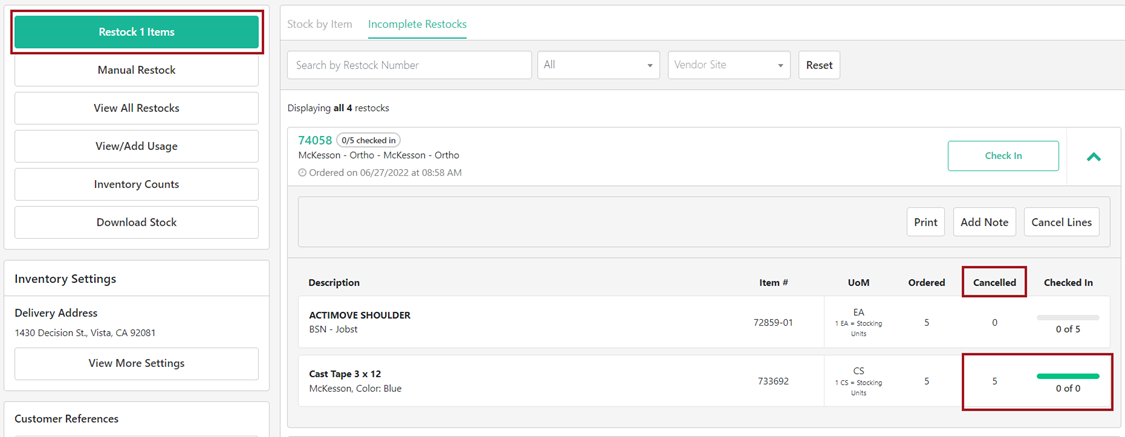
Once lines or quantities are cancelled on a Restock, they are visible on the Incomplete Restock tab or on the Restock page under the new column labeled Cancelled. Users will also see the quantity of items cancelled will decrease the quantity for Check In.
NOTE: Any quantity cancelled on a Restock will automatically show up as Needing Restock under Restock X Items section as the system is expecting they will need to be reordered if they are not arriving for Check In.
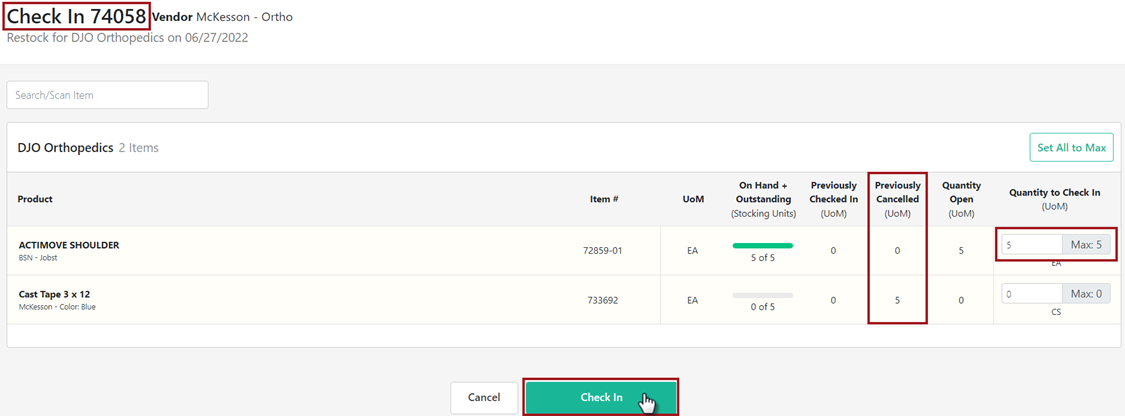
The remaining items on the Restock can be checked in to close the Restock. Users will now be able to view any quantities cancelled on any items on the restock from the Check In page. The Restock will show up under the Checked In filter on the All Restocks page.
Cancelling All Lines on a Placed Restock:
If all lines on a restock are being cancelled, the steps are the same, click the Cancel Lines button, increase quantities to max on all lines and click Cancel Lines button.
The fully cancelled Restock can be found under the Cancelled filter on the All Restocks page.

Clicking into the Restock, all items and quantities cancelled are visible from the Items tab.
Note: A restock cancelled before it is Placed will NOT show items and quantities on the Item tab since they were never ordered.

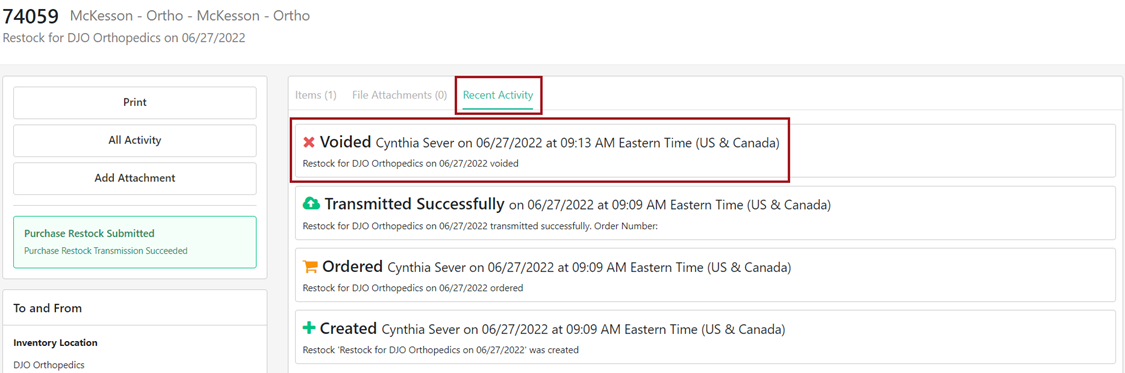
From the Recent Activity tab Users can see the date and time stamp and User who Cancelled Lines on the restock.
Additional Information
Accessibility:
Only Users with the Admin or Inventory Admin role can see the Cancel Lines button and complete the action on Placed Restocks.
Outstanding Restock Report:
A new column is visible labeled ‘Cancelled’ and will show if a partial quantity is cancelled on a line. If all quantities are cancelled on a line, that item will not show on the Outstanding Restock report.

Purchase Order History Report:
A new column is visible labeled ‘Cancelled’ and will show any quantity that has been cancelled on a line.

**PRINTABLE PDF AVAILABLE**