Complete the following steps to create and submit a Restock Order.
On the main dashboard, select Inventory > Inventory Locations to generate a restock.
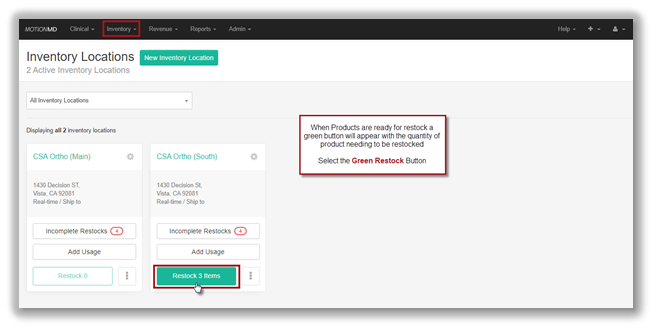
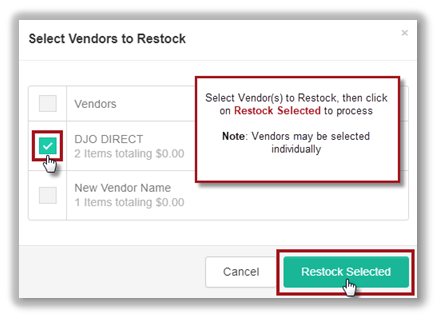
Select Vendor(s) for Restock.
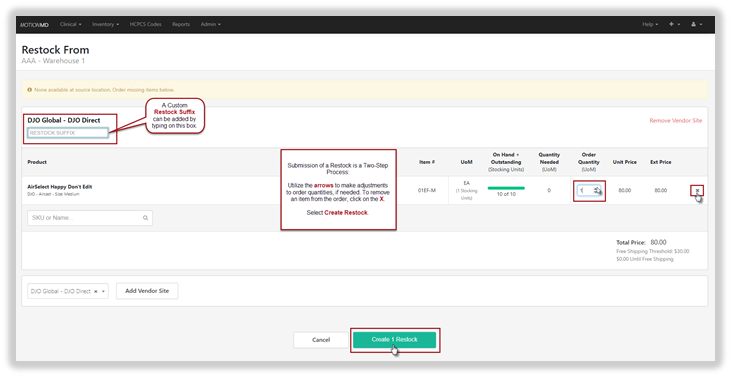
Review Restock Orders and adjust as needed before order is generated by selecting Create Restock. A custom Restock Suffix can be added to help keep track of restock orders.
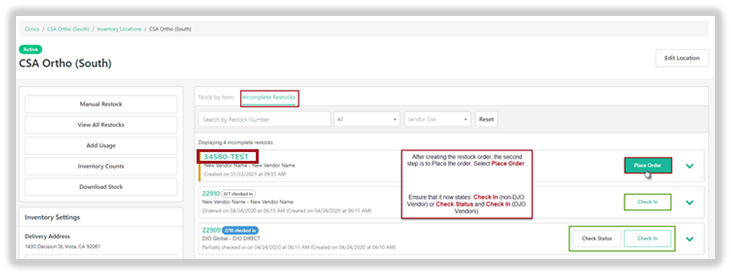
Once created, the restock order number will appear with the custom Suffix if assigned one. In this example, the suffix utilized was TEST. To complete and submit the Restock Order select Place Order.
Restock Failure Notification
In the event a restock fails to transmit, a notification will appear on the Restock show page and users are able to select the Resubmit button to process the order.

***PRINTABLE PDF AVAILABLE***